
During pentests it’s normal to encounter FTP servers, there are various ways to pentest a FTP server. What we’re going to talk about here is, what if the the FTP server has FXP enabled in it, and how could you us this to your advantage and leverage it to scan a host in an Internal Network or a host behind a Firewall. We’ll get to that all, but first lets answer this one basic question.
What is FXP?
FXP stands for File eXchange Protocol which allows you to transfer data using FTP from one remote FTP Server to another remote FTP server without routing this data through the client’s connection.
To make it much simpler, here’s a scenario to understand it better.
Imagine you’re a Network Administrator working away from location, and you need to transfer a large file from Server A to Server B.
In this case you’d have to transfer the file from Server A to your own FTP server first and then transfer it to Server B.
But what if the client or in our case the Network Administrator is on a low-bandwidth network. And the file size is so big that it’d take maybe a day to complete the transfer?
That’s when FXP comes to light.
With FXP the Client or the Network Admin can transfer the file from Server A to Server B without the file needing to go from clients connection. Also, the data transfer rate is independent of clients own Internet connection speed as it is based on the connection speed between the two servers (Server A and B), which usually will be faster than the client’s own Internet connection.
That’s the advantage of using the File eXchange Protocol or FXP. Now the question arises, can FXP be abused?
Yes, it can be and in many ways.
Enabling FXP enables the PORT command. An attacker can use the PORT command to port scan victim machines, Internal servers (via authorized FTP servers) or use it as a proxy to access otherwise inaccessible ports.
Let’s see how we could do that via FTP Bounce Attack.
Port Scanning Internal Host & Host behind Firewall via FTP Bounce Attack
Imagine, a new scenario again.
Suppose, there are two Servers, Server A and Server B.
Let Server A be the “Public Server” and,
Server B be the “Target Server” (ip.addr = 172.32.80.80)
Attacker has credentials for Server A’s FTP but he’s more interested in Server B, he wants to scan Server B to find open ports. But the attacker can’t, since
1. Server is B is behind a firewall.
2. Server B is in an Internal Network, making it inaccessible to the public.
The Image below will explain it better.

Since Server A is public, attacker tried to scan and enumerate it and somehow found the public servers’ FTP creds. The attacker then logs into Server A’s FTP, luckily the FTP in Server A supports FXP. Now the attacker can use this to his advantage and conduct a FTP Bounce Attack to scan the Server B for open ports.
The attacker can log in to Server A’s FTP and ask it to send file to Server B on specified ports using PORT or EPRT command.
This will produce either of the two results:150 File status okay which means the specified port is open.425 No connection established which means the specified port is close.
We want to scan Server B (172.32.80.80) for any open ports via Server A’s FTP.
(We’ll scan Server B’s port 8080 and 7777 only)
- Login in to Servers’ FTP which supports FXP.
- Use the command
PORTorEPRT(use only one of them)PORT 172,32,80,80,0,8080
EPRT |2|172.32.80.80|8080| - Use the command
LISTto see if the suggested port is open.
We scanned for both 8080 and 7777 and the results are given below

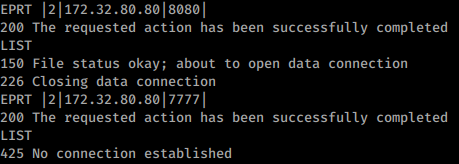
Thus, we learnt that port 8080 is open but port 7777 is closed.
The attacker in this way can now go on scanning a range of ports or the ports of his choice and find open ports which will later aid him in enumeration.
Cheers!

 Anomaly Hunt
Leave a comment